Illustrated example: a checkout release
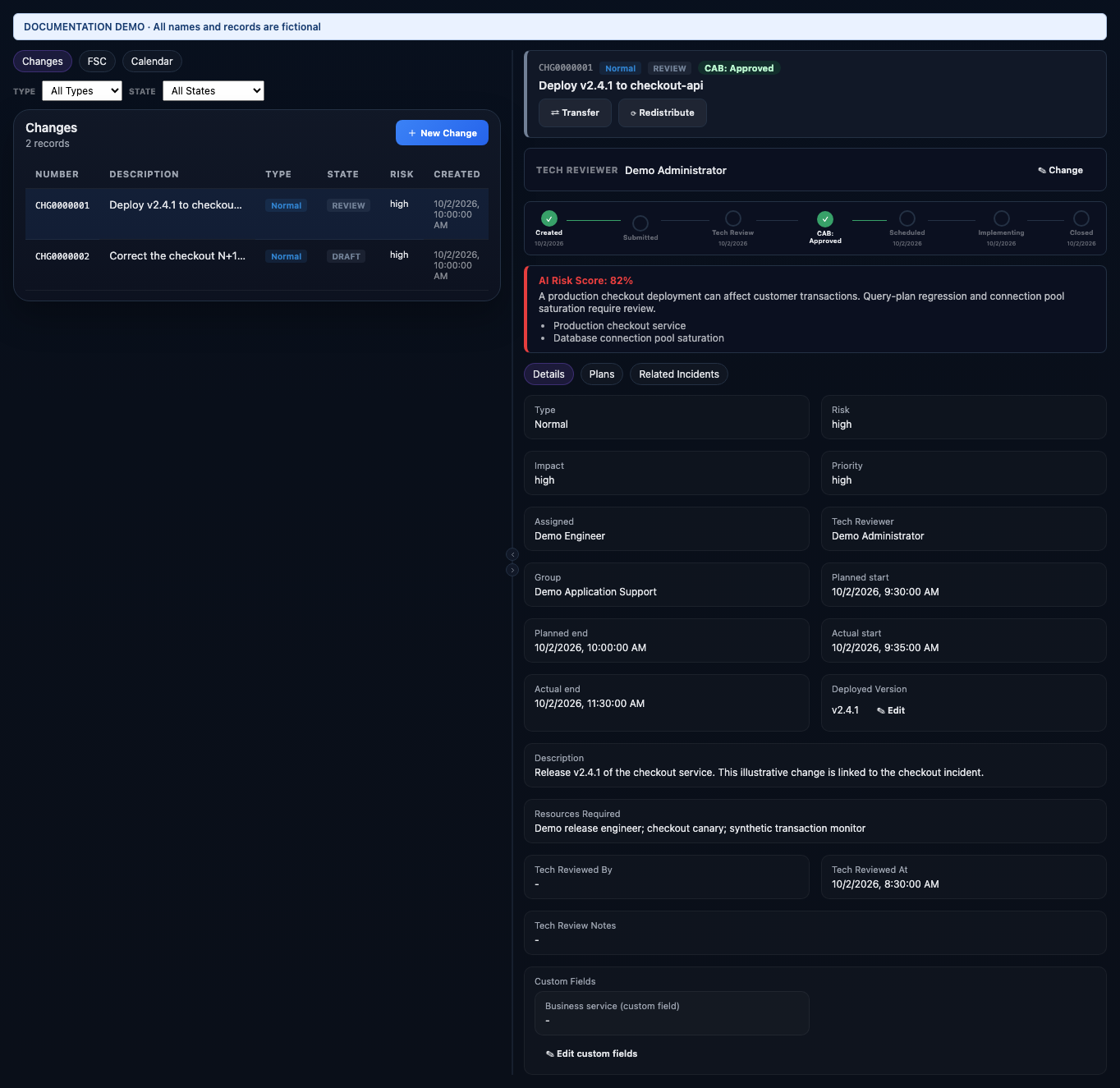
- Short description and Description identify the proposed work and reason. Type distinguishes standard, normal, and emergency procedures; Risk and Impact inform review.
- Assign a responsible user and group, identify the affected CI, and record planned start/end. Actual start/end describe what happened during execution.
- Deployed version names the actual release and supports deployment correlation. Keep it accurate rather than using a generic description such as “latest release.”
- Review the AI impact narrative as supporting analysis. Technical review, CAB decisions, conflicts, and lifecycle controls provide the operational review context.
Write three usable plans
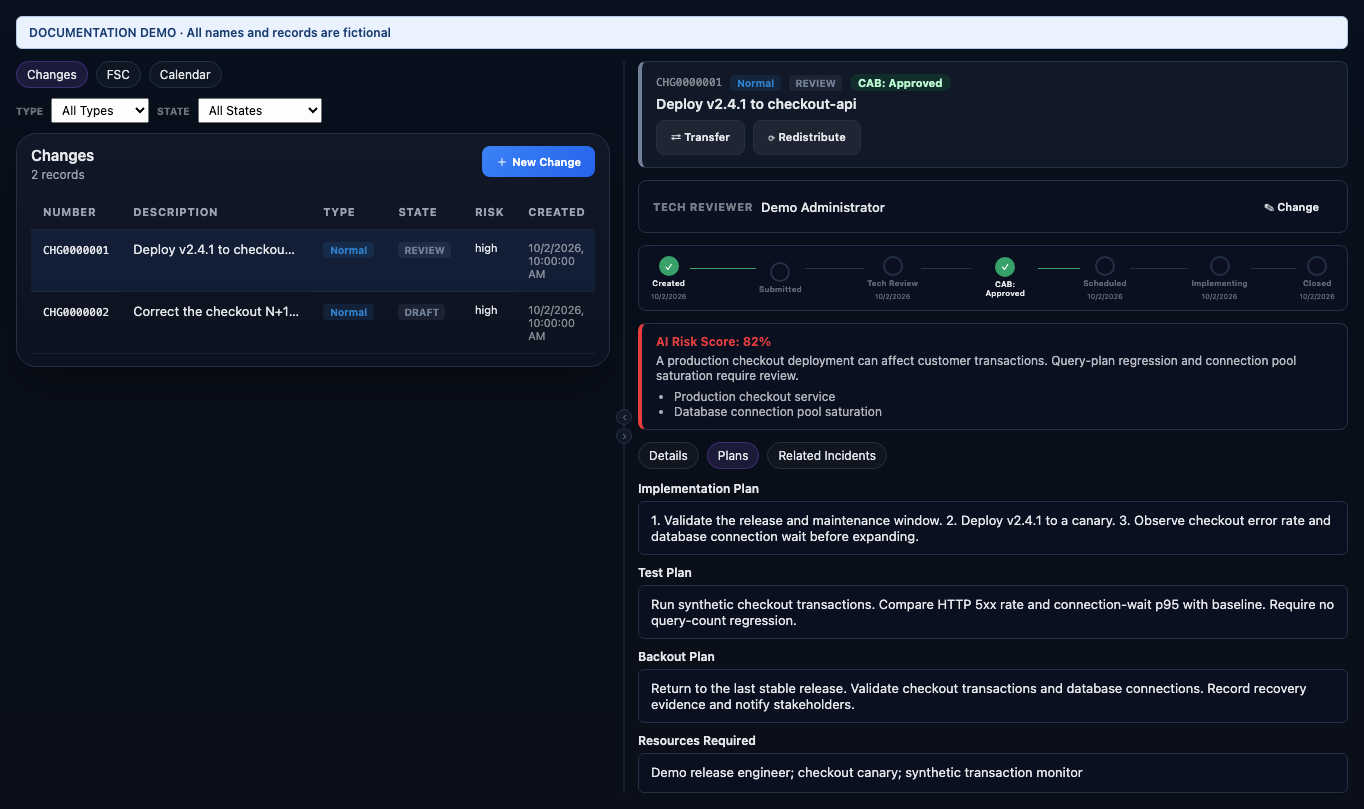
- Implementation plan: validate the window, stage the release, deploy a canary, and expand only after checking the checkout service.
- Test plan: run synthetic checkout, compare 5xx rate and connection-wait p95, and check query count against baseline. Include explicit acceptance criteria in the real change.
- Backout plan: identify the stable release, the rollback procedure and owner, the recovery checks, and the stakeholder update. Confirm that the procedure is usable before implementation.
Review through closure
- Create the draft and populate its CI, ownership, timing, risk, and plans. Review AI-drafted text before using it.
- Complete the applicable technical/CAB review. Check related incidents and originating problems, CI conflicts, overlapping changes, and freeze windows before scheduling.
- Start implementation through the permitted lifecycle action. Record actual execution timing and any deviations.
- Validate the test plan. If the release fails, follow the backout procedure and record the result.
- Close with the appropriate closure outcome and notes. Keep incident recovery evidence and permanent problem work linked for follow-up.
Every change carries a type (standard, normal, or emergency), a risk level, an implementation plan, a backout plan, a test plan, and a link to the configuration item it affects.
Lifecycle
A change starts as a draft and reaches CAB approval one of two ways: it can go through an optional technical review first, or skip straight to CAB — technical review is a parallel option, not a mandatory gate every change has to pass through. From approved, it moves to scheduling, implementation, and closure. Standard-type changes are an exception to all of this — they auto-approve on creation and skip CAB entirely. Closing a change requires a closure code, and a successful close on a high- or critical-risk change automatically opens a 72-hour "watch for recurrence" monitor.
Technical review (optional)
A change can be routed to a designated technical reviewer before CAB — that reviewer gets notified and can approve it (forwarding automatically to CAB) or reject it (bouncing it back to draft with required notes explaining why). This is a separate role from CAB membership, useful when you want a subject-matter expert to sanity-check a change before it reaches a formal review.
CAB review
A CAB review record is created automatically once a change reaches CAB. Reviewers see a blast-radius summary of what the change's CI connects to before they vote, then cast approve, reject, or abstain. Quorum auto-resolves the outcome — enough approvals closes the review as approved and moves the change to approved; enough rejections does the opposite. Quorum defaults to 3 votes and is admin-configurable, along with which users are eligible to vote on a given review. A review can also be scheduled to a specific meeting time, and the requester (or an admin/manager) can withdraw an open review to send the change back to draft for rework.
Checking for conflicts before scheduling
Before you schedule an approved change, its Conflicts panel shows anything that overlaps with the target CI: open incidents or problems already affecting it, and any planned maintenance window that covers it. This is advisory — PulseServe won't stop you from scheduling into a conflict, it just makes sure you see it first.
A separate warning surfaces other open changes whose planned windows overlap yours — on the same CI, the same business service, or a directly related CI — so two teams don't independently schedule conflicting work on the same system without either one knowing about the other. Also advisory, and shown right alongside the change's other details.
Freeze windows
Separately from maintenance windows, an admin can define named freeze windows (see Releases) for a given environment — a code freeze around a major event, for example. Scheduling a normal change into a freeze window is blocked outright, not just flagged. An emergency-type change is the one exception: it can bypass a freeze window entirely, which is the deliberate escape hatch for outages that cannot wait.
Rollback
If an implemented change needs to be backed out, Start Rollback moves it into a rolling-back state; Complete Rollback records whether the rollback itself succeeded or failed. A successful rollback returns the change to implementing so it can be closed normally. A failed rollback is treated as its own emergency — it immediately opens a separate, critical-priority incident (on top of whatever incident a failed change already creates) and extends the post-change monitoring window to cover the failure.
Cross-module links
An incident can be attributed to the change that caused it. A Problem's permanent fix can be raised as a Change; when that change closes successfully, the originating Problem is automatically resolved with a note pointing back to the change. Multiple changes can also be bundled into a Release, and a Post-Incident Review can be opened directly from a change — useful right after a failed one. There's no change-to-change parent/child relationship beyond that Release bundling — if several changes are related, a Release is the way to group them.
Drafting a change with AI
On the New Change form, click Draft with AI, type a rough one-line note of what you want to do, and Generate fills in a professional short description and description for you to review and adjust — a starting point for the CAB reviewer to read, not a substitute for filling in the implementation, test, and backout plans yourself.
AI risk scoring
Submitting a change for CAB review automatically computes an AI risk score — shown as a percentage alongside a short narrative on the change's detail page. It weighs the same kind of context a human reviewer would: what the change touches in the CMDB, how risky similar changes have historically been, and what you've entered for risk level and blast radius. Treat it as a second opinion for reviewers to sanity-check against, not a replacement for CAB's own judgment.
Creating and submitting a change
- From Changes, click + New Change and fill in the title, description, risk level, implementation plan, test plan, and backout plan — or start from an AI draft as above.
- Save it as a draft, submit it for technical review, or submit it directly for CAB review — submitting for CAB moves it to pending CAB, computes the AI risk score, and starts the review timeline, with or without a prior technical review.
- Standard-type changes skip this entirely: they auto-approve on creation, no CAB required.
Reviewing as a CAB member
On a change in pending-CAB state, click Approve or Reject. A rejection requires a reason. Once enough votes are in on either side, quorum resolves the change automatically — you don't need to manually close out the review.
Implementing and closing
On an approved change, click Start Implementation to move it to implementing and stamp the actual start time. When the work is done, click Close Change, enter a closure code, and the actual end time is stamped. A change can also be cancelled at any point before it closes, transferred to a different owner, or — if it goes wrong — walked through the rollback flow above.
Emergency fast-track
For an emergency-type change, an admin or manager can click Emergency Approve to bypass technical review and CAB entirely and move straight to approved, also skipping any freeze-window block — reserved for outages that can't wait for the normal review cycle. It still lands in the same post-close monitoring as any other high-risk change.
The CAB Reviews dashboard
Beyond voting from an individual change, CAB Reviews is its own page — a working queue for the whole board rather than one review at a time. A KPI strip up top shows how many reviews are currently open, plus running totals approved/rejected/withdrawn. Pending Reviews lists every open vote across all changes at once, each with a live tally against quorum; opening one shows the blast-radius summary, votes already cast with their comments, and a place to cast your own. Decision History keeps a record of every closed review and its final tally.
From this page a board member with the right permissions can also: Schedule or Reschedule a review's meeting time (with notes), Assign Reviewers to restrict a specific review to a chosen list of people instead of leaving it open to any admin/manager, and Withdraw a review outright, sending the change back to draft.
CAB Board Settings
Admin-only, and separate from restricting reviewers on a single review: set the org-wide default quorum (how many votes any review needs unless overridden), and maintain a standing CAB member roster searchable from the tenant's user list. With no standing roster configured, voting stays open to any admin or manager by default.
Example
A developer creates a change titled "Deploy payment service v2.4.1 — hotfix for CVE-2024-11234" with a medium risk level, plus implementation, test, and backout plans. They submit it directly for CAB review; three reviewers check the blast-radius summary shown on the review, vote approve, and quorum resolves the change automatically. Once approved, the developer clicks Start Implementation, deploys the patch, monitors alerts for 30 minutes, then clicks Close Change with a successful closure code.