Illustrated example: require review for production
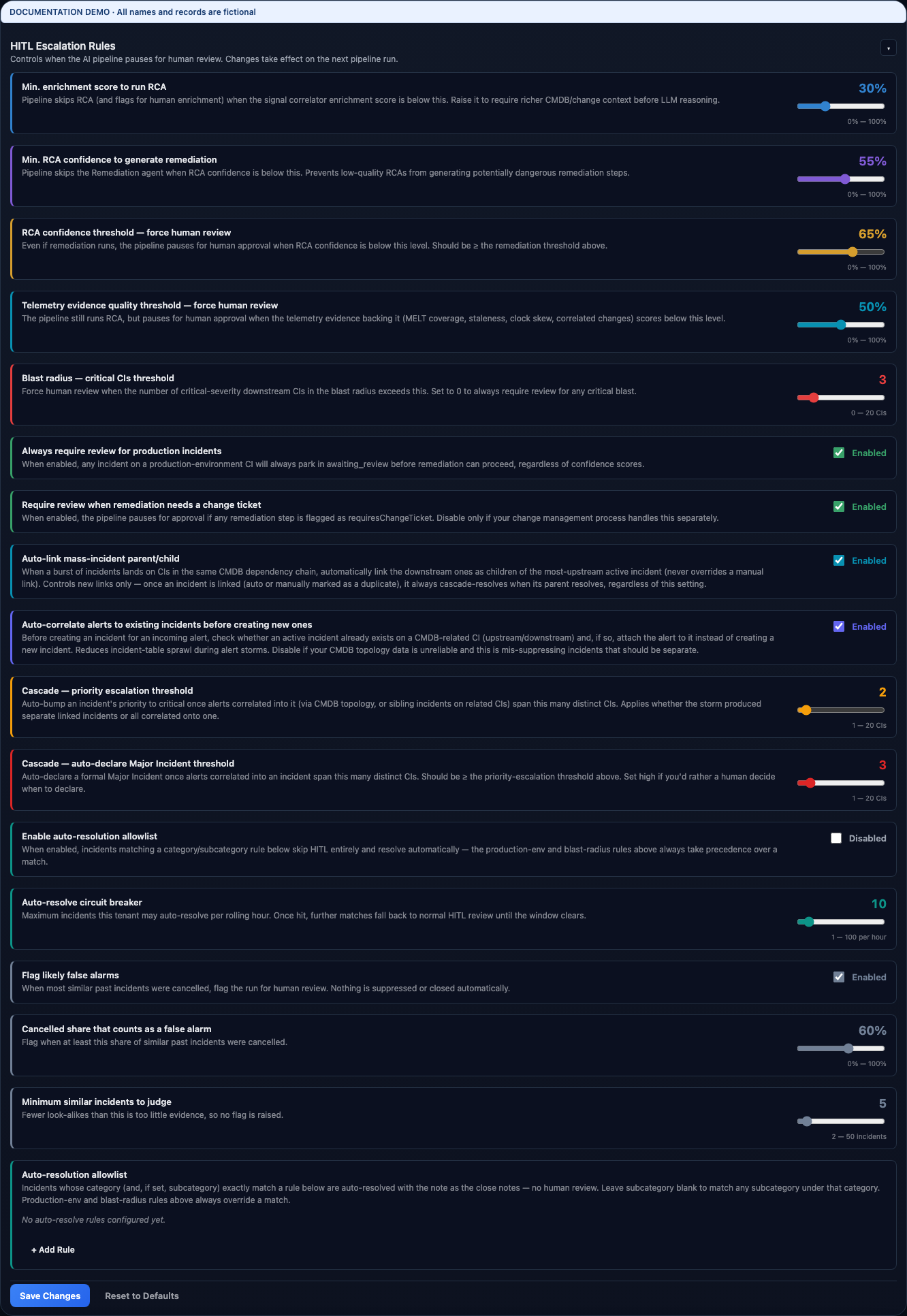
- Minimum enrichment to run RCA = 0.30: below this input threshold, RCA should not proceed as an ordinary sufficiently-enriched analysis.
- Minimum RCA confidence for remediation = 0.55: this is the floor for proposing remediation, distinct from the review floor.
- Require review below RCA confidence = 0.65 and below evidence quality = 0.50: findings may still exist, but a human must review them when these quality limits apply.
- Blast-radius review threshold = 3: exceeding the configured number of critical downstream CIs requires review even when confidence is high.
- Production-environment review and change-ticket review are enabled in this demo. The checkout incident requires production review despite its 88% RCA confidence and 91% evidence quality.
- Auto-resolve is disabled in the demo. Enabling it also requires appropriate explicit allowlist rules and an hourly limit; it should not be assumed to resolve every high-confidence incident.
Configure the complete workflow
- Check SLA Settings and business hours first so the displayed deadlines mean what your support teams expect.
- Review Ticket Routing, frozen-ticket alerts, group bounce detection, and cancellation rules for ownership and waiting states.
- Review HITL thresholds together with Remediation Guardrails, approved Remediation Actions, Autonomy restrictions, and Verification Settings. A review policy and an executable action policy solve different parts of the workflow.
- Configure AI Agents and their provider/model choices where available. Use Log Intelligence masking controls when collecting telemetry that may contain sensitive text.
- Save the relevant settings panel, then check the resulting behavior on a new demo ticket or new analysis run. Record what policy changed and why.
Settings → People & Access, Ticketing Rules, and AI & Automation are where the day-to-day behavior of incidents, routing, and the AI pipeline gets tuned. (User/role/group management and access control live separately — see Users, Roles & Access Control.)
Portal configuration
Request categories, urgency labels, category-specific custom fields, and submission thresholds shown in the self-service portal wizard are all defined here:
- Request categories — type a name and click Add to create one; click the × on a chip to remove it.
- Urgency labels — edit the description shown for each urgency level (low/medium/high).
- Search & validation thresholds — for example, the minimum description length before a submission is accepted.
- Category-specific fields — open a category's tab, click + Add Field, and set a label, type, and whether it's required. Expand a field's row to set a placeholder or, for a select field, its options. These render inline in the portal wizard alongside that category's built-in fields.
Click Save Portal Settings when done — changes persist immediately and apply to the next portal submission.
SLA thresholds
Set response- and resolution-time targets per priority, an at-risk warning threshold, whether the clock only runs during business hours (with a configurable timezone, hours, and holidays), and separate grace-period minutes used for changes and releases. Save, and the new thresholds are reflected on the Governance dashboard right away.
Other ticket-flow controls
- Ticket Routing — turn auto-assignment on or off, and set how long an incident can sit unacknowledged at a given priority before it's reassigned.
- Frozen Ticket Alerts — get flagged when an incident, problem, or service request hasn't been touched in too long, independent of whether it's breached SLA.
- Ticket Group Bounce Detection — get an internal alert when a ticket's assignment keeps flipping back and forth between groups within a short window, a sign it's stuck in a routing loop.
- Field Labels — rename what a built-in field is called across the platform (for example, showing "Incident ID" instead of "Number") without changing how it behaves.
- Routing Rules — keyword-to-group rules (for example, routing anything mentioning "vpn" straight to the networking group), running alongside the AI triage routing agent rather than instead of it; whichever mechanism resolves an assignment first wins for that ticket.
Note on manager approval
There's no standalone toggle-and-checkbox settings panel for manager approval — the categories that require sign-off are the ones an admin has configured via the portal category setup above combined with the underlying approval policy. What you'll interact with day to day is the Manager Approvals queue itself (see Self-Service Portal for the employee side), plus a notification toggle for "notify on manager approval needed" under Notifications.
AI agent configuration
Settings → AI Agents lists every agent as an expandable card with an enable/disable toggle: Correlation, Triage Routing, Skill Routing, RCA, Remediation, Predictive Anomaly, and ROBO (Guidance Chat — see ROBO: Your AI Assistant). Agents that support it also let you choose an LLM provider and model (with a live reachability check when using a local model); Correlation, Skill Routing, and Predictive Anomaly are provider-locked and don't expose that choice. Some agents have their own extra dials — Correlation has a confidence threshold and an "auto-assign root cause" option; Triage Routing and Skill Routing each have their own auto-assign confidence threshold, and Skill Routing additionally lets you weight how much CI ownership, historical similarity, and category alerting each count toward its scoring. A read-only Routing Accuracy panel sits at the top of this card, showing how often the routing agents' suggestions get accepted, overridden, or dismissed.
HITL rules — the full set
This is the richest panel in Settings, and worth knowing in full since it controls exactly when the AI pipeline is allowed to act on its own versus when it must stop and ask:
- Minimum enrichment confidence before RCA is allowed to run.
- Minimum RCA confidence before remediation is proposed at all.
- A separate RCA-confidence floor below which human review is required even if remediation still runs — distinct from the one above.
- Minimum evidence quality below which human review is required (see Root Cause Analysis).
- A blast-radius size above which human review is always required, regardless of confidence.
- Force review whenever the affected system is in a production environment.
- Force review whenever a linked change ticket is involved.
- Auto-link cascading child incidents to their parent.
- Auto-correlate before a new incident is even created.
- A cascade size that auto-escalates severity, and a separate, larger one that auto-declares a major incident.
- An auto-resolve toggle with an hourly rate limit, paired with an Auto-Resolve Allowlist — rows of category/subcategory/close code/resolution note that define exactly which kinds of tickets are safe to close automatically. This is a deliberately explicit allowlist, not an AI judgment call — nothing gets auto-resolved unless it matches a rule you wrote.
Example
An admin wants every IT Hardware request to capture an asset tag. In Settings → Portal Configuration, they open the IT Hardware tab, click + Add Field, set Label to "Asset Tag," Type to text, and mark it required. They save, and the next employee who submits an IT Hardware request sees the Asset Tag field appear automatically in the wizard, right alongside the built-in hardware fields.