Use Deployment Management → History to see what has been deployed across your servers. Use Git report to check whether those deployments run the latest code. This guide uses an example app named orders-api; names, revisions and commits in the examples are illustrative.
Find a deployment
- Open History and enter orders-api in Search deployments, then submit the search.
- Choose Production in the environment filter. Use Any status to see all phases, or choose Failed, Building, Awaiting approval, Scheduled or another available status.
- Turn on Include removed if you need the record of a deleted deployment.
- Open a row to inspect its Timeline, Services, Builds, Revisions and Drift tabs.
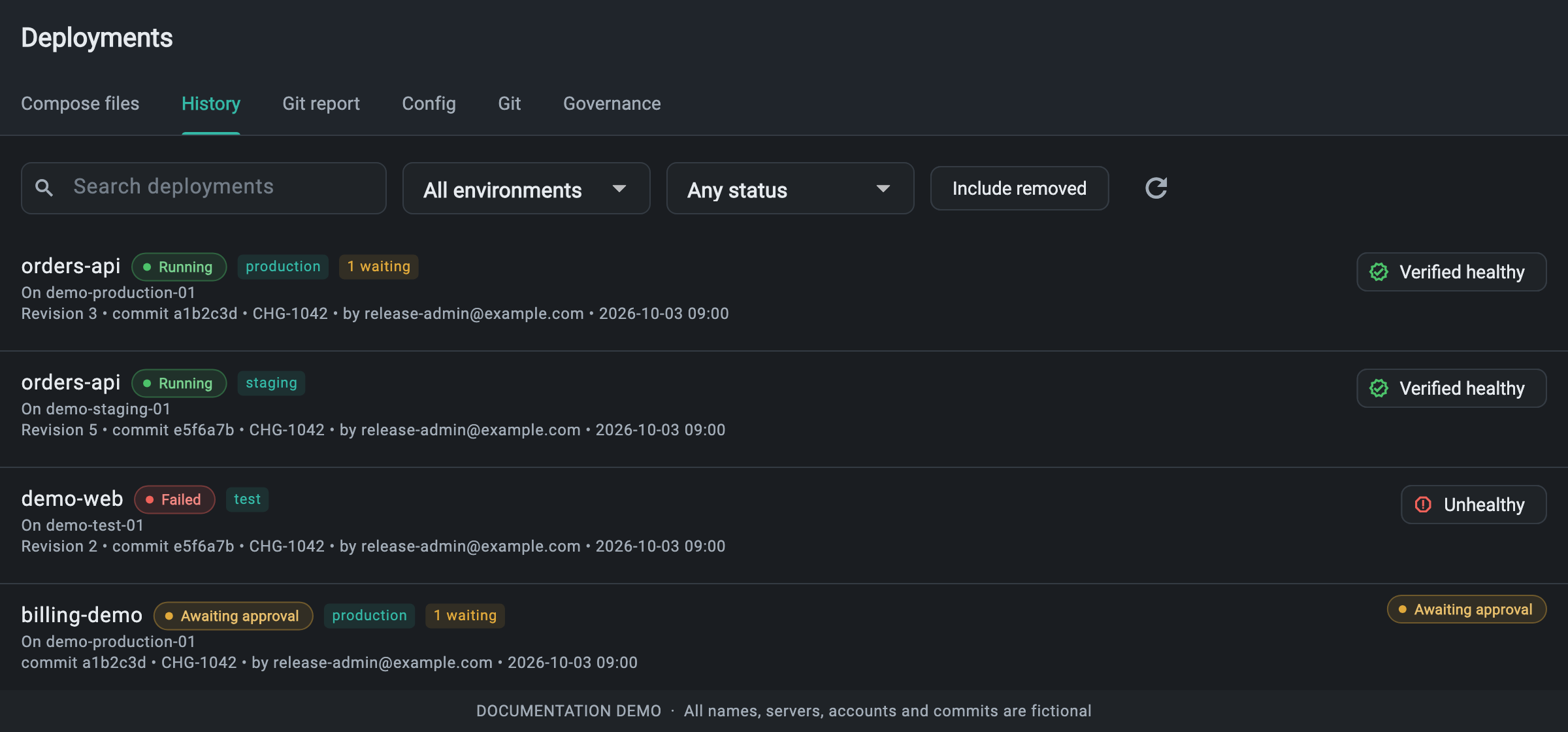
Read phase, health and waiting changes
- Phase tells you the operation state, such as Running, Building, Failed, Awaiting approval or Scheduled.
- Health tells you whether a revision has passed its health checks. A running stack can still be unhealthy; read its health message before treating the release as successful.
- Revision and commit identify the deployed configuration and code. The row also shows its server, creator, creation time and change request reference when present.
- A waiting badge counts pending changes. An existing deployment can continue running its old revision while a new request waits for approval or a maintenance window.
Example: investigate a failed release
- Filter History to orders-api in Production and open the failed deployment.
- Read Timeline to locate the failed step. If an image build failed, open Builds and read its log. If startup or health verification failed, check Services and the affected container logs.
- Open Revisions and use View to inspect the Compose YAML recorded for a revision. Compare with the current definition using Drift when you suspect a configuration change.
- After finding the cause, an administrator can fix the definition and redeploy, or use Roll back to choose a known good revision. Check the resulting phase and health again.
Example: explain why production has not updated
Suppose revision 3 is healthy, but a request for the next release is Awaiting approval. The healthy badge describes revision 3. It does not mean the pending change has run. Open Governance → Approvals to review the request; after approval, a maintenance window may still determine when it runs.
Choose the report for your question
- Did the release run and pass its health checks? Use History and the deployment Timeline.
- Which Git changes have not reached a deployment? Use Git report → By deployment.
- What would promotion from staging to production ship? Use Git report → By environment.
- Did configuration or running containers change outside the last rollout? Use the deployment Drift tab.
Use Export CSV in Git report for a shareable Git status report. History provides filtering and deployment details; it does not have a CSV export button.