Open Incident-Mgmt, select INC0000001, and start with Overview. The detail page brings ticket fields, assignment, investigation, communication, and recovery into one workspace.
These are actual PulseServe screens rendered with fictional documentation fixtures. INC0000001 uses the seeded checkout outage scenario; the related problem, change plans, users, and dates are illustrative. This resolved example shows a completed investigation. Available tabs and actions depend on your role, permissions, configuration, and ticket state.
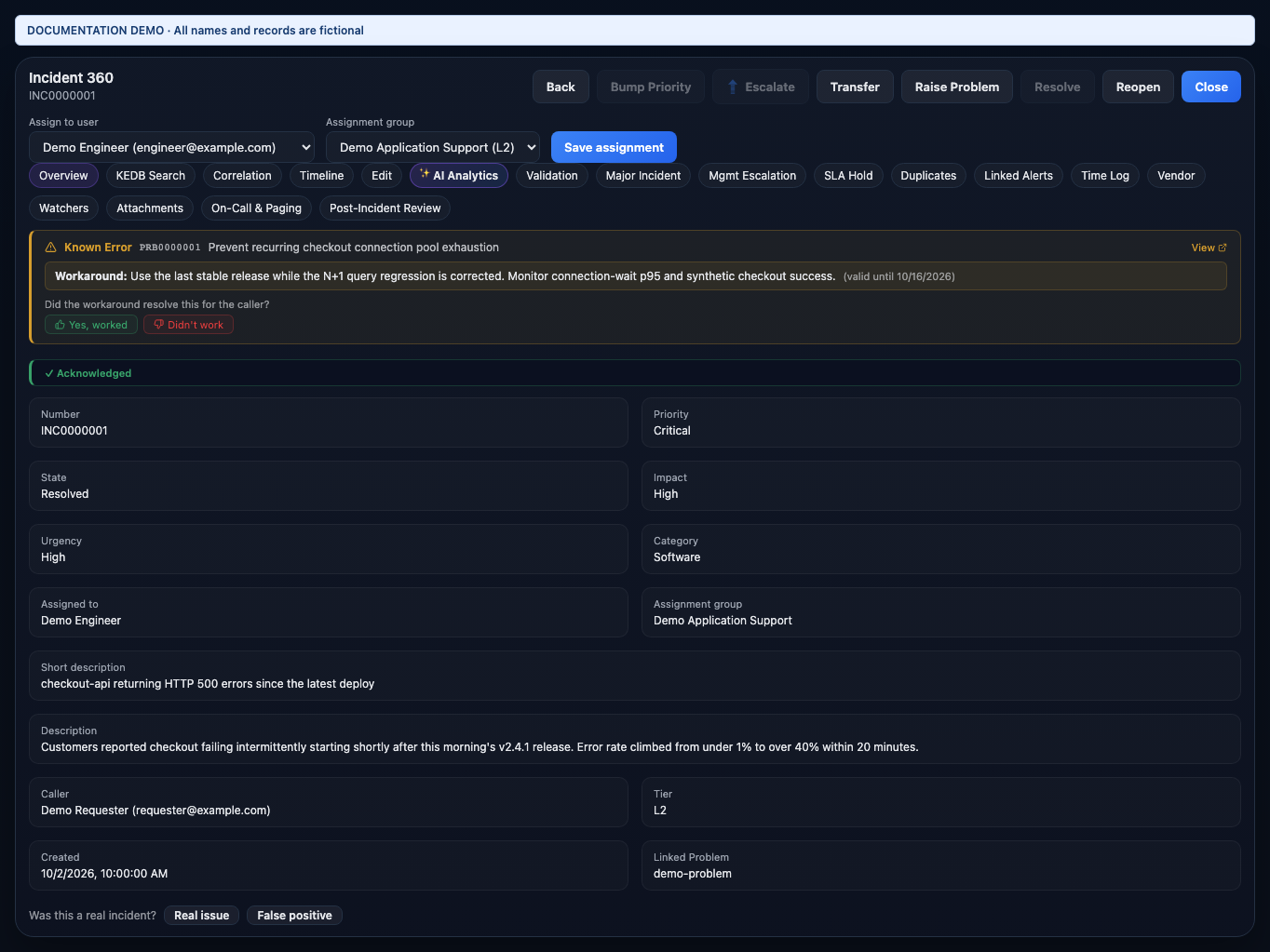
Read the core fields
- Number identifies the incident. Short description gives the symptom in one sentence; Description records the observed behavior, onset, and impact. Here, checkout fails after v2.4.1 and the error rate rises above 40%.
- Priority controls operational attention and SLA targets. Impact describes the scope of disruption; Urgency describes how quickly action is needed. Read these together rather than treating a priority label as a diagnosis.
- State tells you the current lifecycle position. Resolved means service has recovered; it does not mean the long-term defect has been eliminated.
- Category and Subcategory classify the issue for routing and reporting. This example uses Software / Database connectivity.
- Assigned user is the current owner; Assignment group is the team responsible for the work. Tier identifies the support level. Save assignment commits changes made in the header.
- Caller identifies the requester and contact address. Created/opened timestamps establish the start of the record. On active incidents, the SLA display shows the resolution target and status; an acknowledgment countdown appears when applicable. The resolved example has no running SLA timer.
- A related problem link keeps permanent prevention connected to the incident. The configuration item identifies the affected component and supplies context to correlation and RCA.
Edit the record without losing context
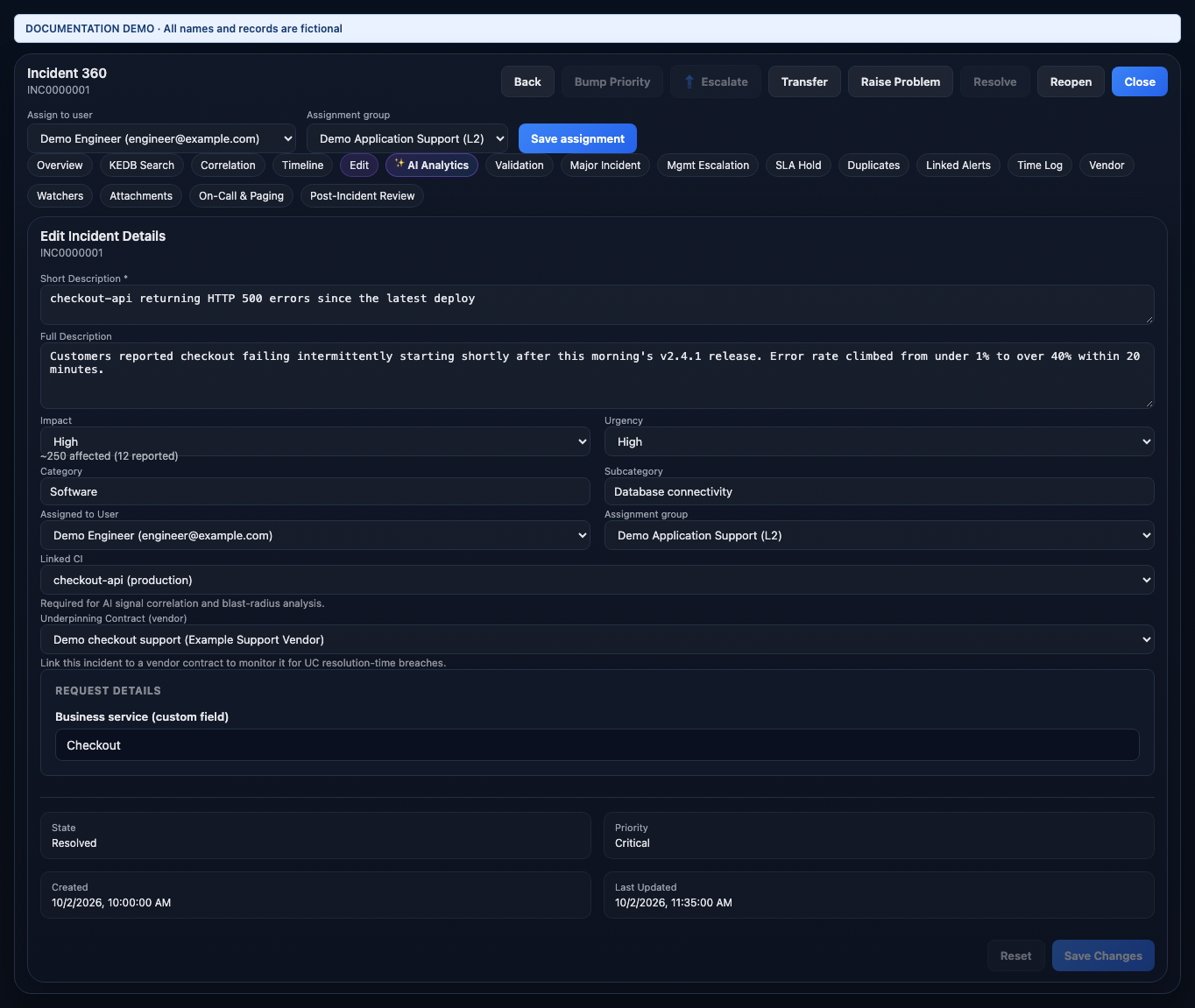
Use Edit for the description, classification, assignment, affected CI, applicable underpinning contract, and configured custom fields. Review the affected CI carefully: checkout-api and its database are different components. State and Priority are shown for context; the form derives priority from Impact and Urgency rather than offering an independent priority selector. Save only after you have checked that the record identifies the actual affected service.
Work an active incident
- Confirm the symptom, caller, impact, and affected CI. Check KEDB Search for an existing workaround before investigating from scratch.
- Claim an unassigned ticket or save its owner and support group. Acknowledge the assignment when that action is available.
- Inspect Correlation and AI Analytics. Compare deployment timing with telemetry, read evidence gaps, and review the root-cause hypotheses.
- Add investigation findings in Timeline. Escalate with a reason if another tier is needed, or Transfer when a specific new owner is known.
- Review required RCA and remediation approvals. Record any change needed for production work and follow its review process.
- Apply the approved recovery procedure and check both telemetry and functional behavior. Record the close code and resolution notes when resolving.
- Close the resolved incident according to the applicable confirmation policy. If the defect needs permanent prevention, keep the linked problem open until its own checks are complete.
Use the right tab for supporting work
- Timeline: state changes, audit events, and notes; mark a note internal when it should not be visible to employees.
- KEDB Search, Correlation, and AI Analytics: known workarounds, related signals and changes, evidence, hypotheses, review, and recovery.
- Validation, SLA Hold, Vendor, and Mgmt Escalation: recovery checks, approved waiting periods, third-party handoffs, and management attention.
- Major Incident, Duplicates, and Linked Alerts: coordinate a wider outage, identify its parent/children, and trace the triggering alerts.
- Watchers and Attachments: keep stakeholders informed and retain investigation files. Time Log records effort.
- On-Call & Paging and Post-Incident Review: bring in responders and capture follow-up learning.
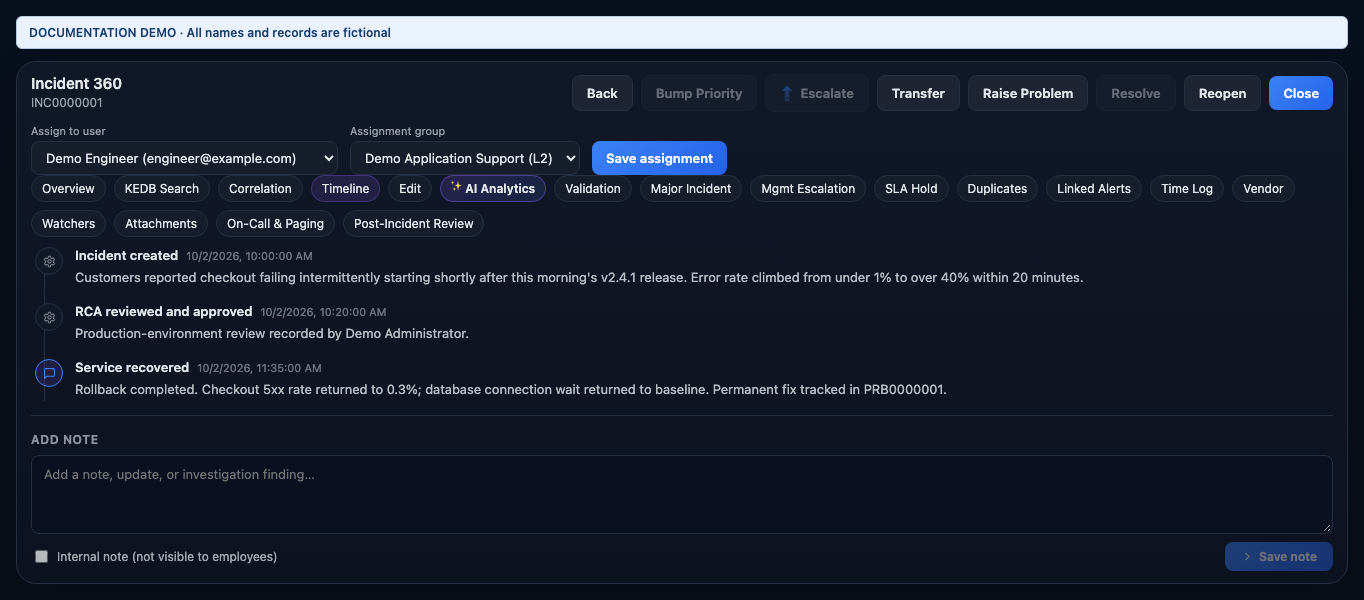
Example resolution note
Close code: resolved_by_fix
Recovery: Rolled back checkout-api v2.4.1 to the last stable release.
Verification: HTTP 5xx rate returned from 40% to 0.3%; connection wait returned to baseline.
Functional check: Synthetic checkout succeeds.
Follow-up: PRB0000001 tracks the permanent query-plan correction.
A recorded execution or a high-confidence RCA is not sufficient evidence of recovery on its own. Check verification results and the service behavior before resolving. Disabled actions in this screenshot reflect the resolved state of the example.