Open Insights → Report Builder when a fixed report does not answer your question. Start by deciding which records you want to include and what the metric should mean.
The screenshot uses a fresh demo report configuration. Results in your environment are calculated from its records; the figures below are illustrative examples, not seeded totals.
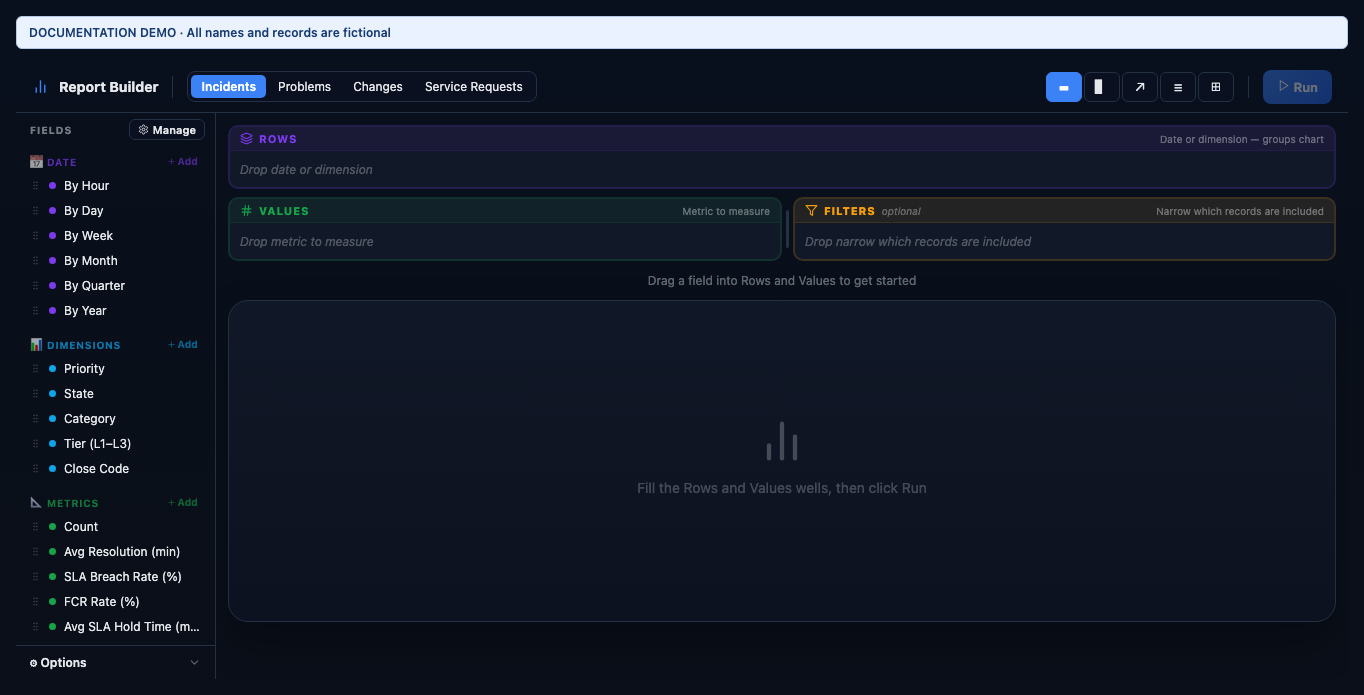
Recipe 1: count incidents by priority
- Set Source to Incidents.
- Drag Priority into Rows and Count into Values.
- Set a date range if you need a specific reporting period. Add State to Filters if the question concerns only new and in-progress incidents.
- Choose H-Bar or V-Bar and click Run.
- Read each bar as a count of matching incident records. A critical-priority bar of 4 means four records matched the selected period and filters; it does not measure the number of affected customers.
Recipe 2: monthly change failure rate by risk
- Set Source to Changes; choose Pivot to show the Columns well. Use By Month in Rows, Risk Level in Columns, and Change Failure Rate (%) in Values.
- Set the reporting period. Add Change Type to Filters if you need to isolate normal or emergency changes.
- Run the report and compare the risk columns across months. Review the underlying change records before attributing a trend to a team or release.
- Save the report with a descriptive name such as Monthly change failure by risk.
The field catalogue has source-specific choices. Department and assignment group are not offered as Report Builder filters in the current UI. Use available fields rather than assuming every ticket field is a reporting dimension.
Choose the metric that answers the question
- Count measures matching records; Avg Resolution (min) measures time. Avoid comparing either with a percentage as though the units were the same.
- Incidents offer SLA Breach Rate, FCR Rate, and Avg SLA Hold Time in addition to count and resolution time.
- Changes offer Change Failure Rate, Emergency Change Rate, and Schedule Overrun Rate.
- Problems offer Known Error Rate. For example, Rows = State and Values = Count shows the problem backlog distribution.
- Service Requests offer Avg Approval Wait and SLA-related metrics. Switching source changes which fields are available.
Display, compare, export, and schedule
- Use a Trend chart with a time grouping; Table shows the values directly; Pivot uses both Rows and Columns.
- Top N and sorting change the presentation. Threshold rules color values that cross the thresholds you define.
- Use the comparison option when you need the previous-period context. Keep the source, filters, metric, and period clear when explaining a difference.
- Export results as CSV, Excel, or PDF. A saved definition can be re-run later; the original screenshot is not a live report.
- Save with a name and description, optionally shared. Configure daily, weekly, or monthly delivery, the delivery time, format, and recipients when scheduling is available. Delivery depends on the environment’s email configuration.